- 인터넷은 우리에게 자유를 주었습니다. 저희는 자유를 얻기 위해 지식을 통합하고 체계화하고 공유합니다. 랜선 위 정글에서 살아남기 위해 저희는 시키는 일만 하는 꿀벌 대신 고객을 위해 창조하고 혁신하는 게릴라가 되겠습니다. Seenbuy.kr is now Aiforu.kr.
- 024042463
- 01032667931
- [email protected]


How to check the performance of schema (rich snippet) in Google Search Console
Considerations when measuring performance
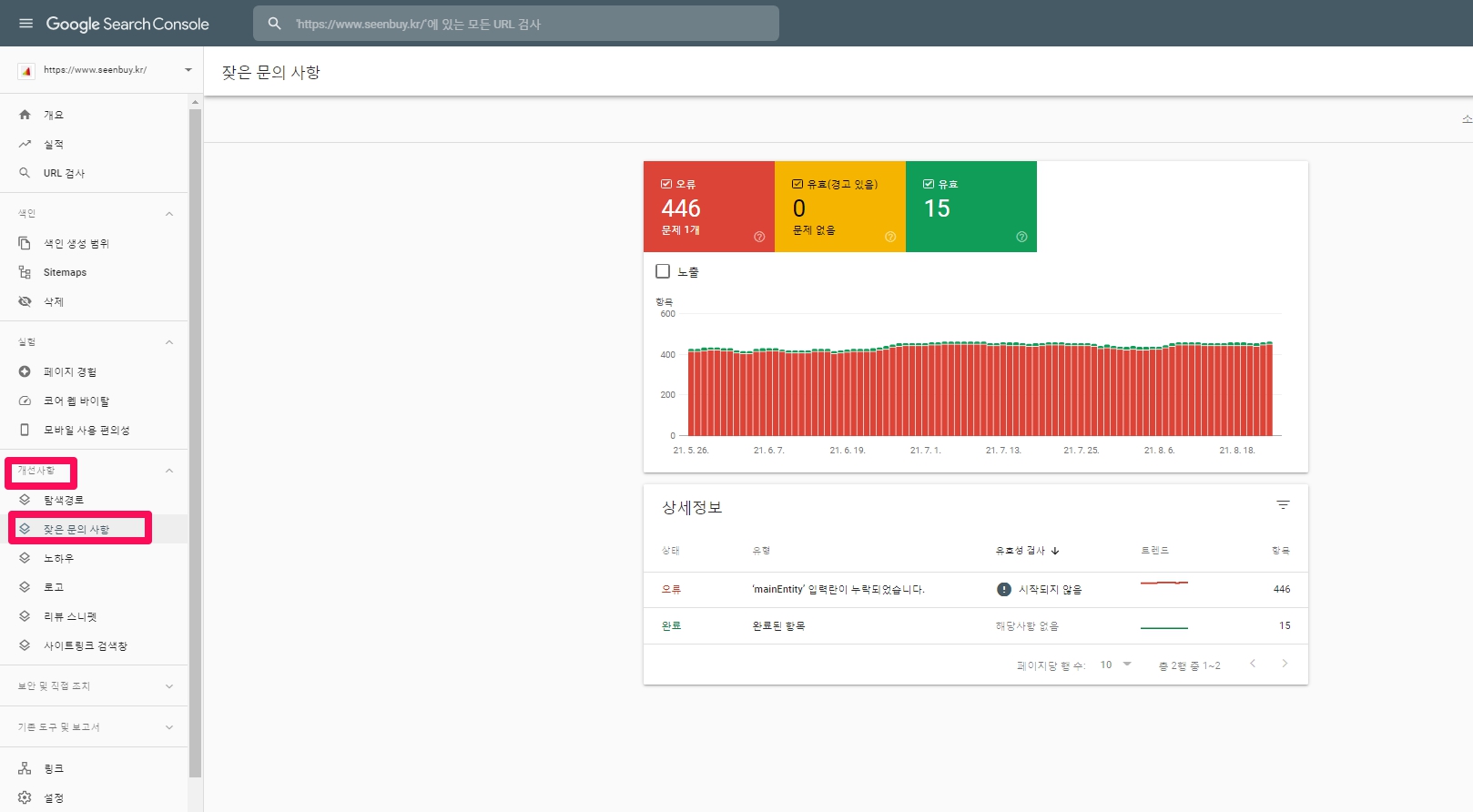
- There should be no incomplete schemas. You should measure performance without errors or warnings.
- To check errors or warnings, select the schema you want to view in Improvements.
- After applying the schema, you need to track how the CTR and ranking change over time after applying the schema to a specific page. I need to know exactly, but I don’t know the time. Usually, I remember talking about 10 weeks. )
- A detailed rich search test for each page is available at https://search.google.com/test/rich-results?utm_campaign=sdtt&utm_medium=message.
- It is important to note that measuring statistics is not suitable as a means of measuring performance when schema work with high-ranking pages. You can make the mistake of working on a highly ranked page and evaluating it as being ranked up.
Limit
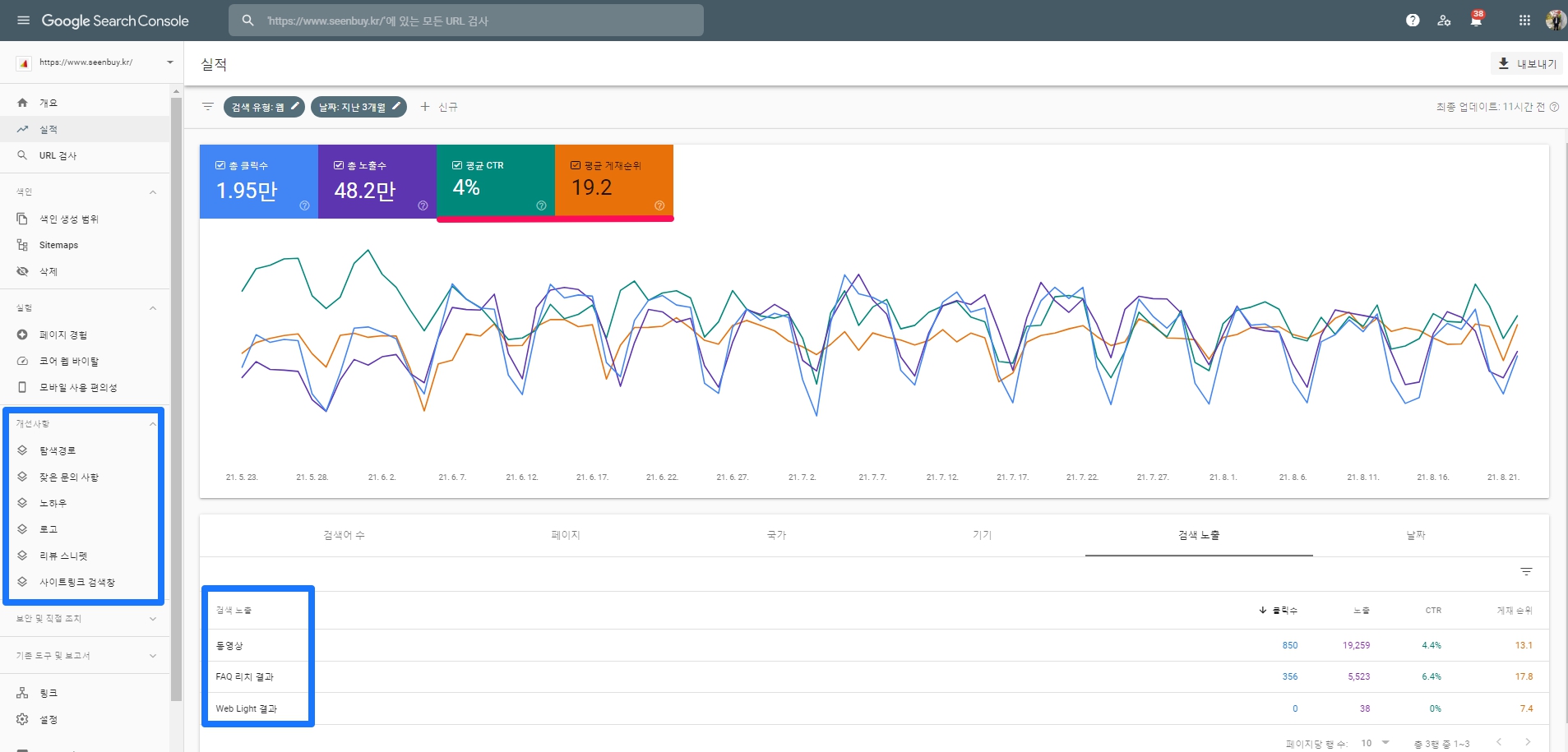
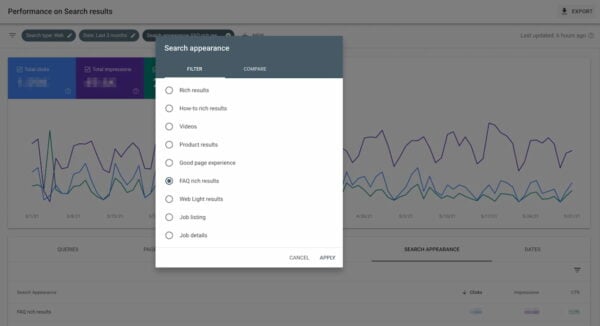
- Applying a schema (rich snippet) does not mean that all performance will be tracked. If you look at the improvements in the image below, you can see that the navigation path, frequently asked questions, know-how, logo, review snippet, and site link search box schema have been applied to this site, but performance -> search exposure includes videos and FAQ rich results web light Only results are displayed. Only videos, FAQ (Frequently Asked Questions), and web light (?) are shown as performance.
Performance items to be measured
- Click-through rate (CTR)
- Position
It’s a good way to measure by comparing time periods (dates).
Check that pages with schema applied have higher click-through rate (CTR) and position than other pages without schema.
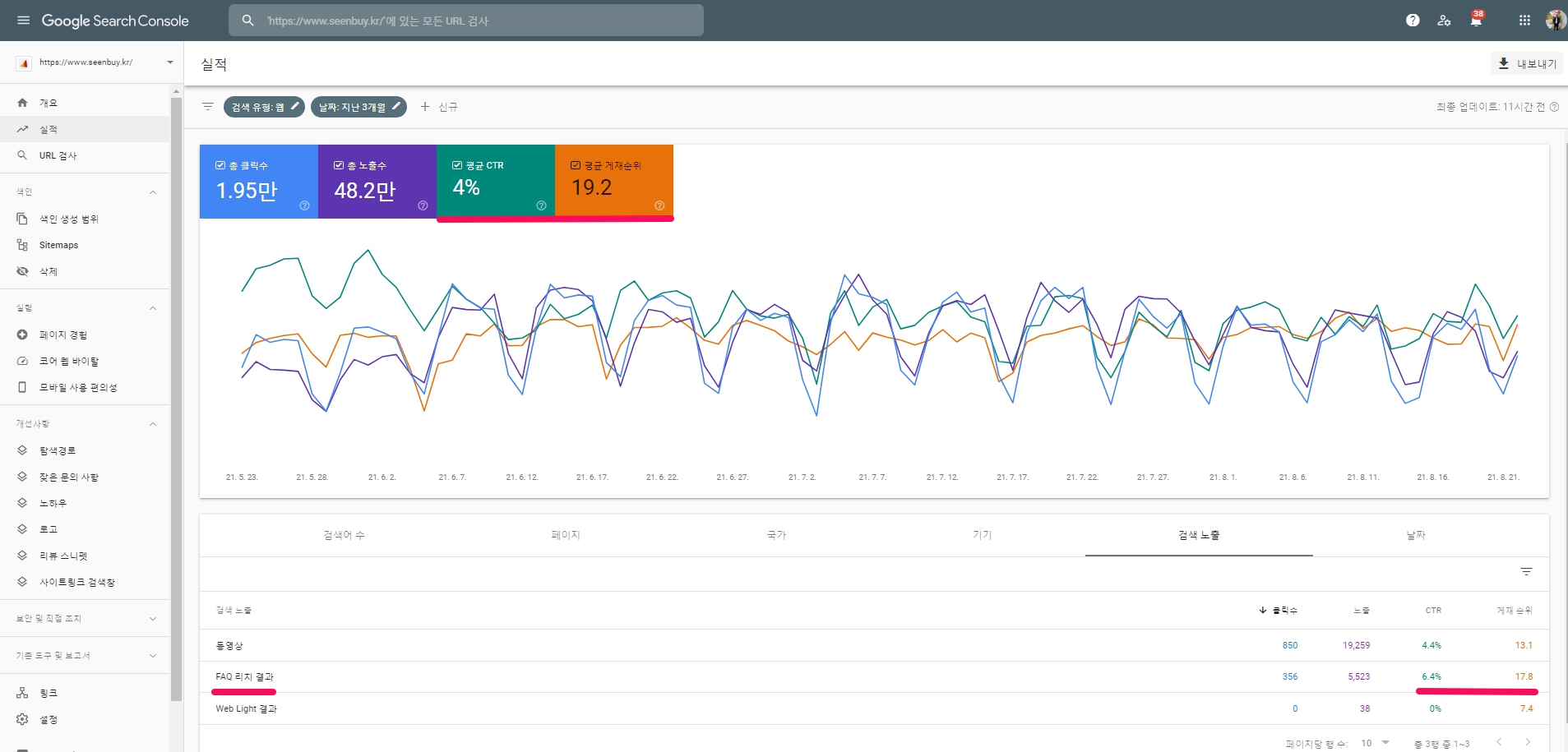
If you look at the example of the search console data below, for the FAQ rich results, the click-through rate (CTR) was 6.4%, and the position was 17.8. The average is an average CTR of 4%, an average position of 19.2, and so on, indicating that the FAQ rich schema is working.
Check click-through rate (CTR) and average position between schemas. For example, make sure your product schema has a higher click-through rate than your review schema.
Implementation in Search Engines – Google Search (7:42)
How to check the performance of rich snippets (schema) in Google Search Console > Performance Report
As with all Search Console, there are many things you can do. However, there is no one-size-fits-all solution that works for everyone in all situations. If you need some basic insight into search performance, you can get it here. If you want to run complex queries and find data to enrich your dashboard, you can find it here.
Want to see the performance of your rich results? Of course you! The least you can do is check Search Console regularly. Go to Performance > Search Results to open the report. Then you can find the Search Impression report in two ways. You can either add a new filter called Search Appearance in the top bar or click the Search Appearance tab below the graph.
References: 1. How to check the performance of your rich results in Google Search Console