- 인터넷은 우리에게 자유를 주었습니다. 저희는 자유를 얻기 위해 지식을 통합하고 체계화하고 공유합니다. 랜선 위 정글에서 살아남기 위해 저희는 시키는 일만 하는 꿀벌 대신 고객을 위해 창조하고 혁신하는 게릴라가 되겠습니다. Seenbuy.kr is now Aiforu.kr.
- 024042463
- 01032667931
- [email protected]


Read text from image/pdf file (using OCR function) and convert/translate into text

Search engines cannot read what the image contains. So, alt tag is also used, but the surest way is to type the text in the image and put it as a description around the image. However, typing is a very simple and tedious task. There is a way to solve this difficulty. The solution is to convert the image document to text text (using the OCR function).
Reading text from image file in Google Drive
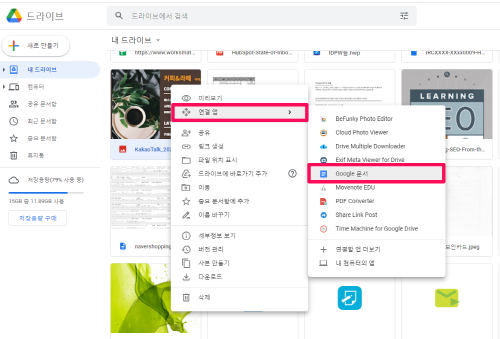
After uploading the image file to Google Drive, left-click the image and click [Connected App] ->[Google 문서] If you select , it will switch to Google Docs, and the text will be read and imported.
It shows the image to be read at the top and displays the result as text text, which brings it very neatly. Very good.
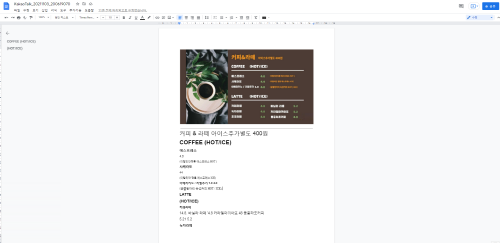
Reading text from pdf file in google drive
This is the same as reading text from an image file.
After uploading the pdf file to Google Drive, left-click the image and click [Connected App] ->[Google 문서] If you select , it will switch to Google Docs, and the text will be read and imported.
Translate Google Docs
Select [Tools] -> [Translate Document] to translate.
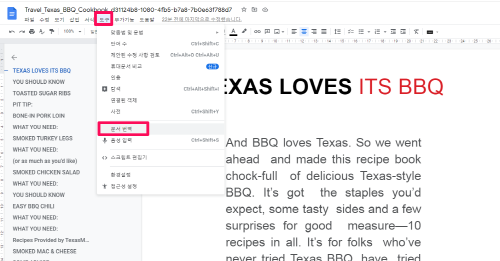
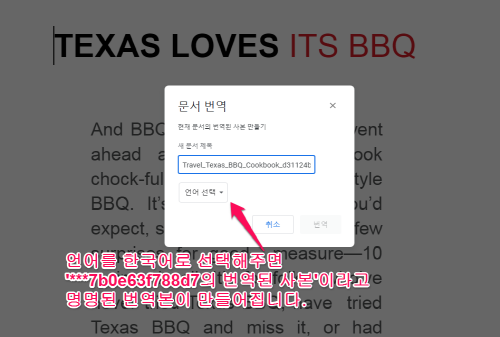
When the option (selection) window appears, select Korean from [Language selection] and click [Translate] to create a file with the name of ‘translated copy of abc’.
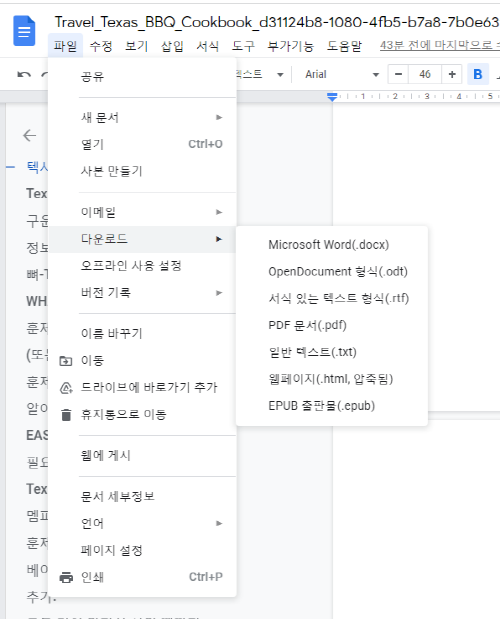
Microsoft Word (.docs), OpenDocument Format (.odf), Rich Text Format (.rtf), PDF Documents (.pdf), Plain Text (.txt), Web Pages (.htm Compressed), EPUB Publications (. epub) can be downloaded and used in various formats.
Reference
The command to find search results by file type in Google is ‘filetype:’. Searchable file extensions are various: ppt, pdf, xls, doc, hwp, swf, rtf, txt, odt, etc. (Image and video files do not seem to work.)
For example, the file format is pdf, and if you are looking for a Texas barbecue recipe, you can enter a search term like ‘filetype:pdf texas barbecue recipe’ or ‘texas barbecue recipe filetype:pdf’.
References: 1. Convert image document to text text, OCD program pain, Google Drive Google Docs, Google Translate app