- 전문 분야 특화 AI 에이전트 및 자체 개발 Electron 기반 차세대 AI 코딩 IDE 제공 - app.aiforu.kr에서 확인하세요. Domain transfer from seenbuy.kr to aiforu.kr.
- 024042463
- 01032667931
- [email protected]


WPML Multilingual Plugin (1): Advanced Translation Editor
Please enter your video schema. [done]Please put topical ~ schema as ‘multilingual site’.
WPML’s advanced translation editor makes it faster and easier for you and your translator to work with, delivering better translations. The editor includes key features such as machine translation, glossary, translation memory, spell checker, HTML-less editing, and more.
Advanced Translation Editor for WPML is a computer-assisted translation (CAT) tool that replaces the default translation editor. It works directly in your browser, allowing you or your local translator to translate posts, pages and strings.
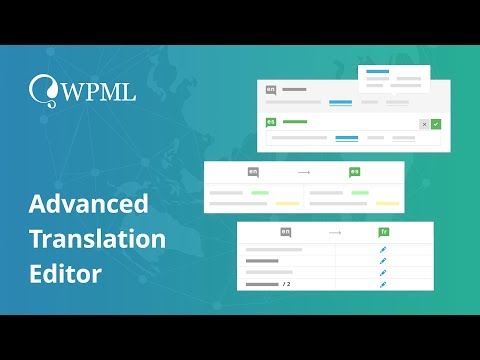
Watch the following video introduction to the advanced translation editor.
Watch the following video introduction to the Advanced Translation Editor
WPML Advanced Translation Editor (2:31)
English is a bit difficult. It is easy to understand if you read and watch to the end of this article.
Things you need
To use the advanced translation editor, make sure your site has the following WPML plugins installed and enabled:
- WPML Multilingual CMS ( WPML Multilingual CMS ): This is a paid plugin.
- WPML String Translation
Activate Advanced Translation Editor
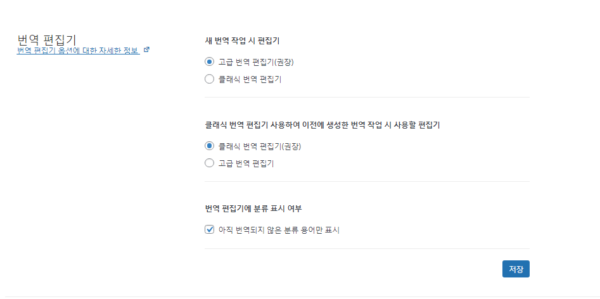
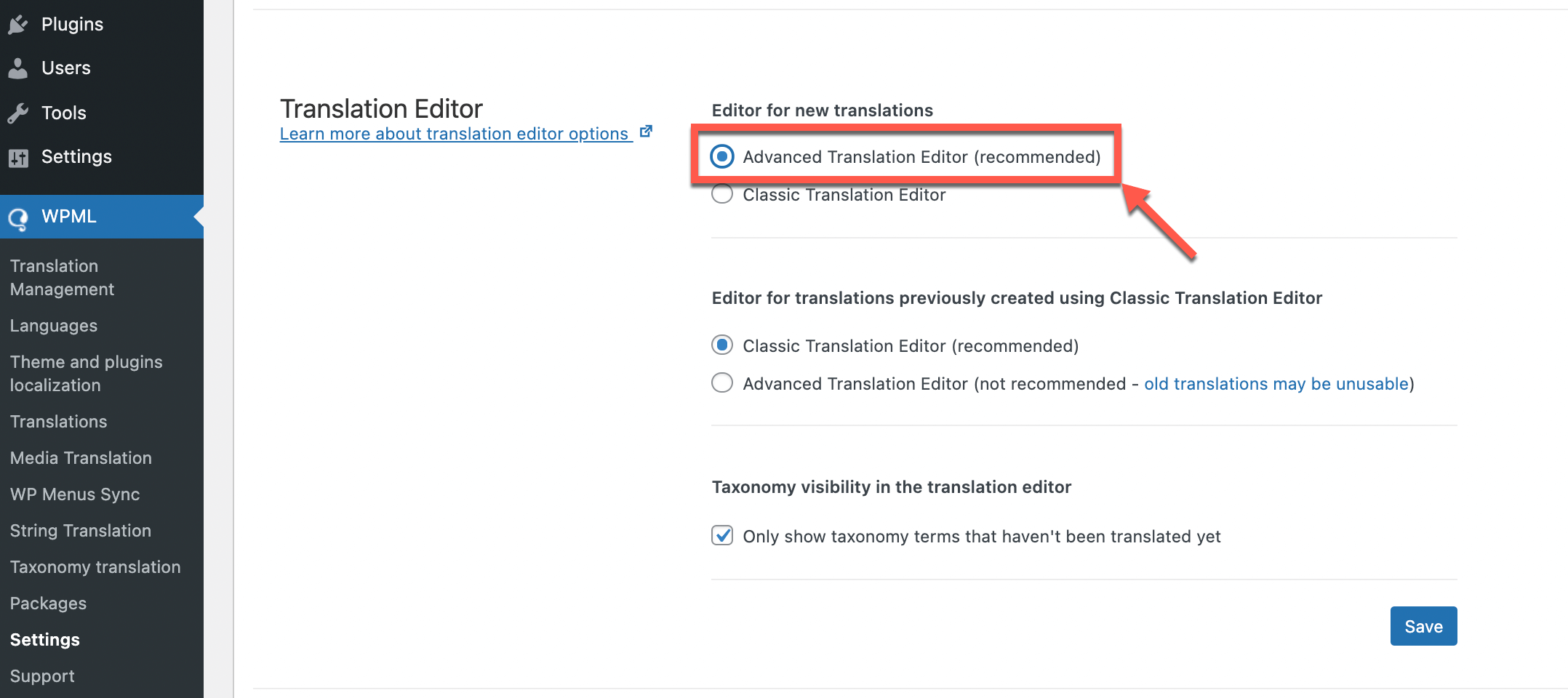
The advanced translation editor is selected as the default translation editor by default for all new sites. If this is not currently selected for your site, you can change it in the WPML → Settings page.
When working on a new translation, it would be better to edit with Editor: Recommended.
– Advanced translation editor (recommended)
– Classic translation editor
It would be better to edit with the editor to use when working on a translation previously created using the classic translation editor: Recommended.
– Classic translation editor (recommended)
– Advanced translation editor
Whether to show classifications in the translation editor
– Show only classified terms that have not yet been translated: Check it.
( 이미지 출처 : Advanced Translation Editor )
Key Features of Advanced Translation Editor
The advanced translation editor has several great features to help you translate your website easily and smoothly.
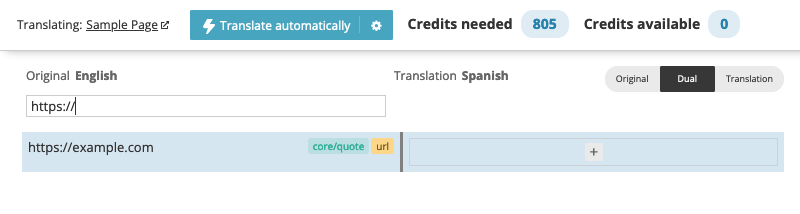
To translate a URL, shortcode, or HTML attribute, just search for the value in the Advanced Translation Editor search box (source).
( 이미지 출처 : Advanced Translation Editor )
HTML Markers
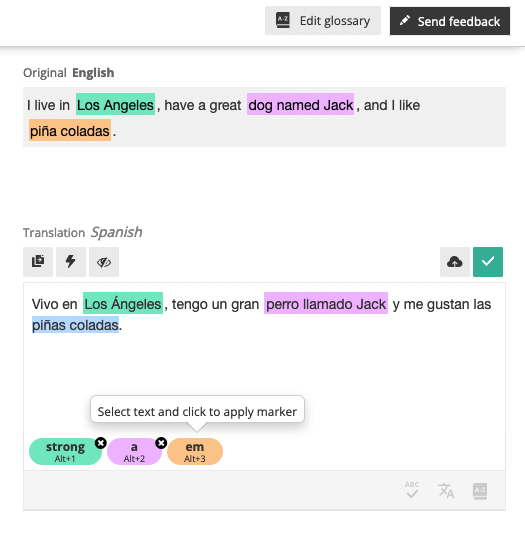
Since we are translating a website, the content usually contains HTML tags . The advanced translation editor allows you to do visual translations without editing HTML . This prevents the translator from breaking the page structure or generating invalid HTML.
The following image shows how formatting markers look in the editor. For example, strong in green means bold .
( 이미지 출처 : Advanced Translation Editor )
Just highlight the phrase and click the colored button that matches the marker in the original language. The phrase is highlighted in the same color as the original text. Now the same format is applied to the translation.
automatic translation
The advanced translation editor allows you to:
- 모두 번역 모드(Translate Everything mode) 를 사용하여 사이트의 모든 콘텐츠를 자동으로 번역 합니다.
- 또는 일부 번역 모드(Translate Some mode) 를 사용하여 특정 페이지와 문장만 자동으로 번역 합니다.
자동 번역은 Google 번역, Microsoft 번역기 또는 DeepL에서 제공하는 기계 번역을 사용합니다. 그것은 대부분의 전세계 언어를 지원합니다 .
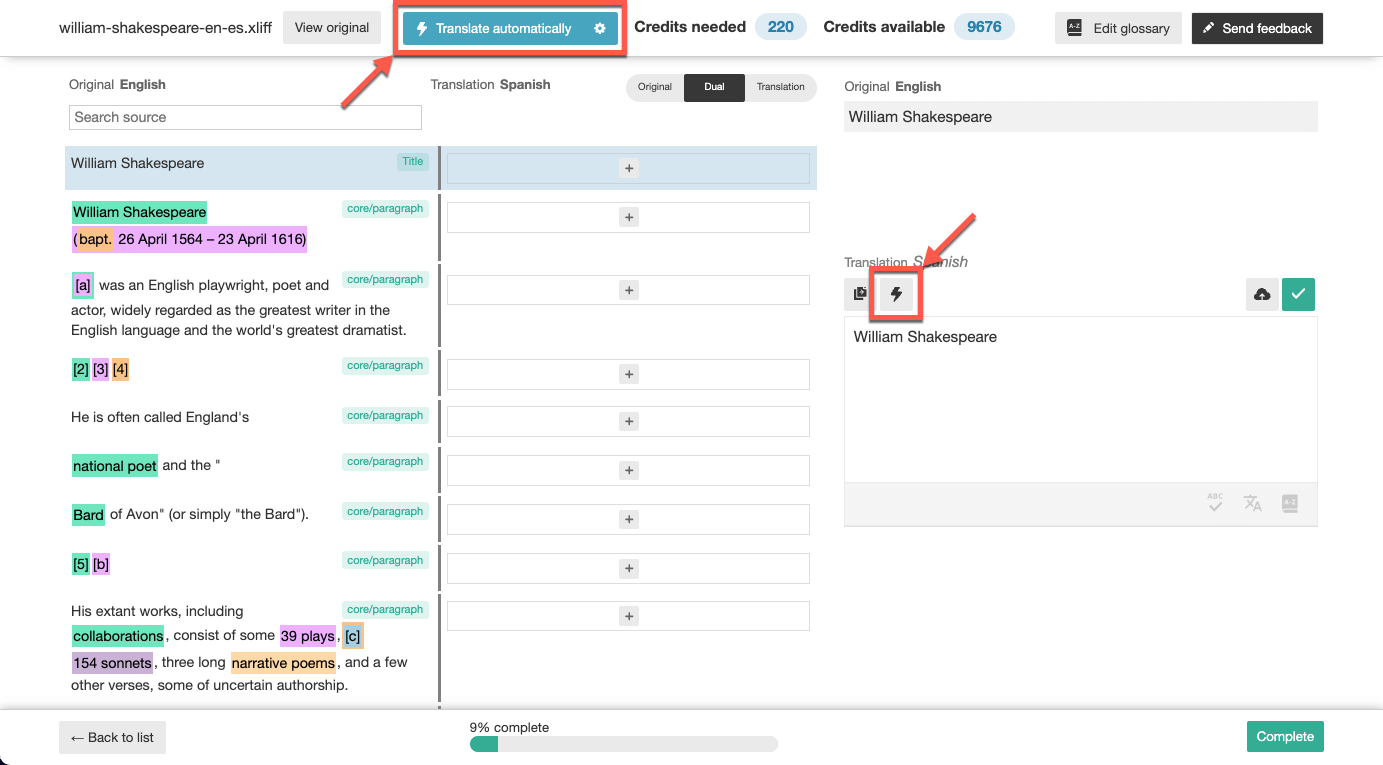
( 이미지 출처 : Advanced Translation Editor )
After your content has been automatically translated, it’s a good idea to review it and make sure everything is translated correctly. If you don’t like any part of the translation, you can easily edit it.
자동 번역 계정 에 가입 하면 매월 2000 자동 번역 크레딧 을 무료 로 받을 수 있습니다 . 필요한 만큼 더 많은 크레딧을 합리적인 가격으로 사용할 수 있으며 예산을 초과하지 않도록 한도를 설정할 수 있습니다.(set limits 가 안 열립니다. 이 부분은 좀더 살펴보아야 겠습니다.)
번역 메모리(Translation Memory)
The advanced translation editor breaks the content into sentences. This allows editors to keep track of all translated texts in the translation memory of the entire site.
사이트 어디에서나 문장을 반복하면 페이지를 번역할 때 고급 번역 편집기가 저장된 번역을 자동으로 적용합니다. 이렇게 하면 동일한 문장을 여러 번 번역할 필요가 없으므로 시간과 비용을 절약할 수 있습니다.
자세히 알아보려면 WPML의 번역 메모리 작동 방식( how WPML’s translation memory works ) 에 대한 페이지를 방문하세요 .
전문 번역 서비스 또는 클래식 번역 편집기와 같은 고급 번역 편집기 내에서 다른 소스의 이전 번역을 볼 수도 있습니다.( You can also view previous translations from other sources within the Advanced Translation Editor, such as from professional translation services or the Classic Translation Editor.)
문장 결합(Joining Sentences)
윗문장과 아렛문장을 결합하려면 결합하려는 콘텐츠 옆에 있는 녹색 링크 기호를 클릭합니다. 이렇게 하면 합쳐진 보다 큰 문장을 통으로 번역하여 보다 자연스러운 번역이 가능해집니다.
고급 번역 편집기 내에서 문장을 결합하면 콘텐츠를 번역하려는 방식에 더 많은 유연성을 제공할 수 있습니다. 이를 통해 자연스럽게 흐르는 번역 경험을 제공하고 직접 일대일 번역이 없는 문장을 번역할 수 있습니다.
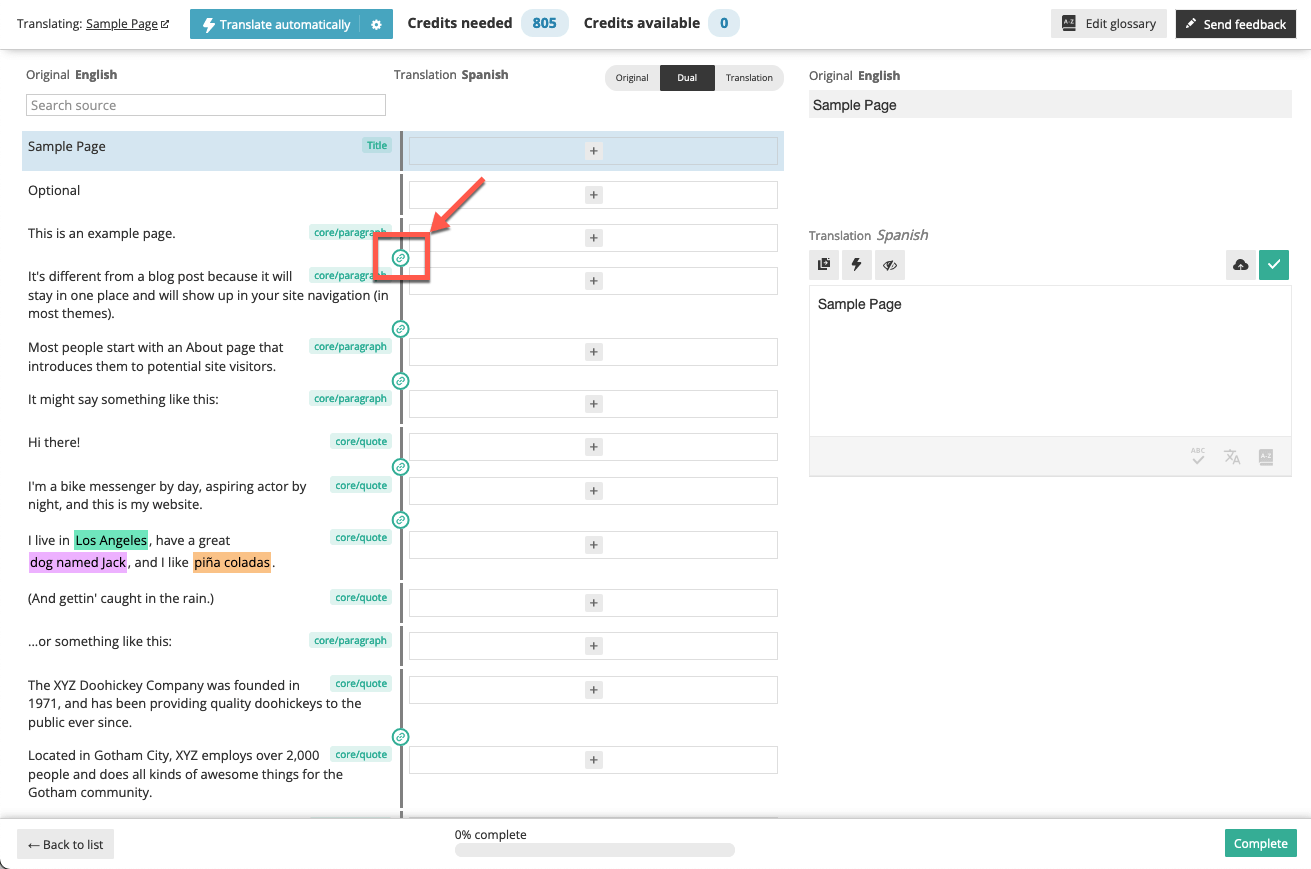
( 이미지 출처 : Advanced Translation Editor )
From here it’s your turn.
결합 해제( Unjoin ) 를 클릭하여 문장의 결합을 해제할 수도 있습니다 .
고급 번역 편집기에서 문장 결합 ( You can also unjoin sentences by clicking Unjoin. 에 대한 단계별 지침을 보려면 이 비디오를 시청하십시오 .
Note: Combining sentences prevents the translation memory from reusing the translations of individual sentences. If you’re translating sentences that will appear in multiple places on your site, it’s a good idea to keep them separate.
You can also unjoin sentences by clicking Unjoin .
Watch this video for step-by-step instructions on joining sentences in Advanced Translation Editor .
Please note: joining sentences will prevent Translation Memory from being able to reuse translations of individual sentences. If you are translating sentences that will appear in multiple places on your site, we recommend leaving them separate.
glossary
The advanced translation editor includes a glossary where you can specify translations for important terms and phrases. Using a glossary creates more consistent translations, saves translators time researching related terms, and prevents automatic translations from mistranslating phrases (such as company names).
While translating content in the Advanced Translation Editor, you can add new glossary terms or manage terms by going to WPML → Manage Translations and clicking the Automatic Translations tab.
WPML Glossary Management → Translation Management
Glossary
The Advanced Translation Editor contains a glossary that allows you to specify translations for important terms and phrases. Using a glossary helps produce more consistent translations, saves translators’ time in researching the related terminology, and helps prevent automatic translation from translating phrases incorrectly (such as your company name).
You can add new glossary terms while translating content in the Advanced Translation Editor, or manage your terms by going to WPML → Translation Management and clicking the Automatic Translation tab.
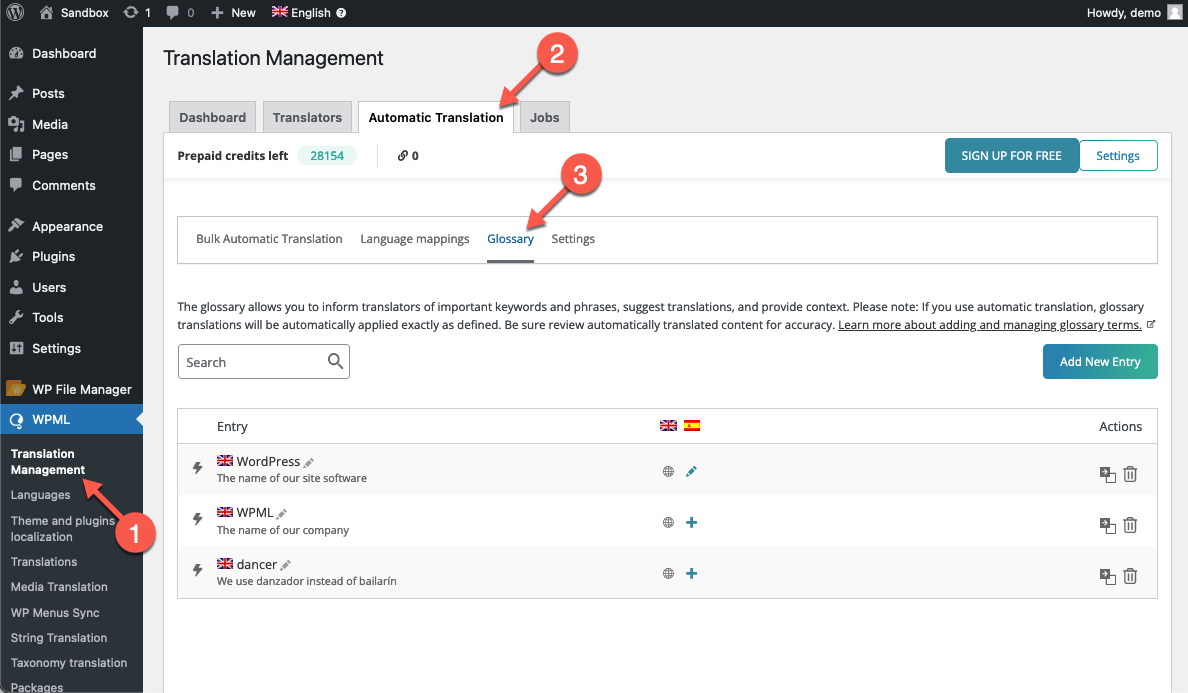
Access the glossary in the advanced translation editor
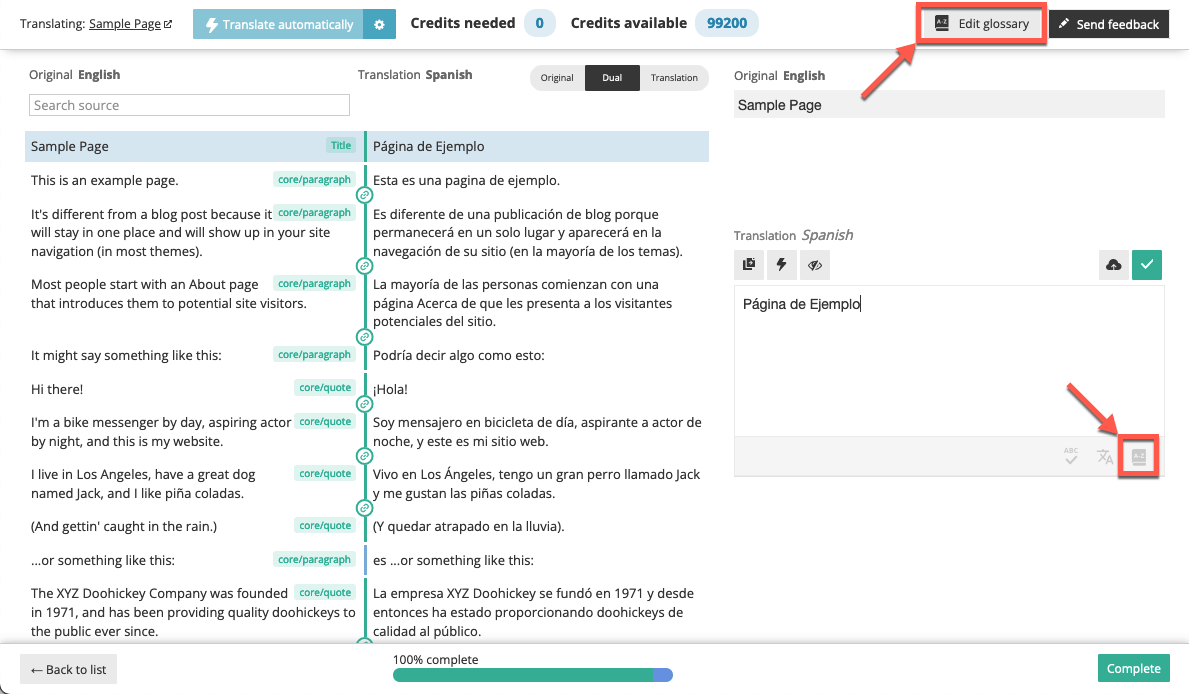
(Read more about managing glossary terms . )
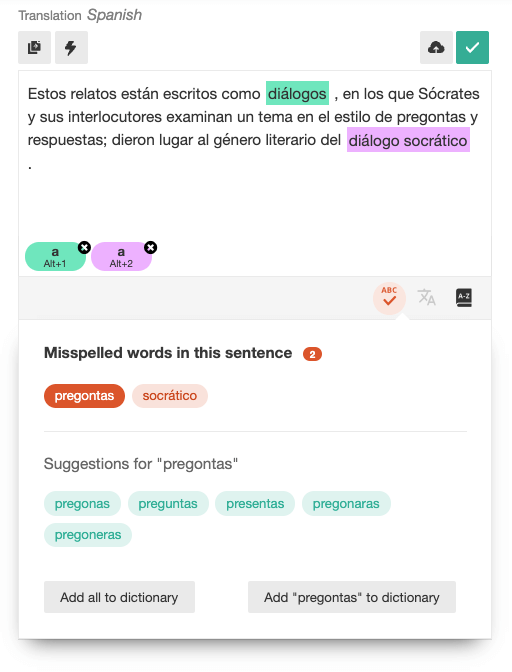
spell checker
A built-in spell checker helps translators avoid spelling errors and typos.
Spell Checker
The built-in spell checker helps your translators avoid spelling errors and typos.
Disable Advanced Translation Editor
If necessary, you can easily go back to using the classic translation editor. Before doing so, check out the Turn off Advanced Translation Editor page.
Deactivating the Advanced Translation Editor
If ever needed, you can easily go back to using the Classic Translation Editor. Before doing so, please check our page on turning off the Advanced Translation Editor .
Resetting or uninstalling the WPML plugin will clear your translation memory, glossary, and auto-translation accounts. Previous invoices and word usage reports are no longer accessible. There is currently no way to restore these settings. (Please note that resetting or uninstalling the WPML plugin will erase your translation memory, glossary, and automatic translation account. Previous invoices and word usage reports will no longer be accessible. At this time, there is not a way to recover any of these settings.) : It sounds like an important notification…. I don’t know the exact meaning yet.
References: 1. Advanced Translation Editor